
Reviving an Old Laptop over the Christmas Break with Lightweight Linux
We have all got one somewhere. It is at the back of the cupboard under the stairs, or on top of the wardrobe in the spare room, quietly gathering dust. Perhaps it is a trusty Toshiba or an old Dell that served you well through university, or a hand-me-down HP that the kids used for schoolwork until it slowed to a crawl. You meant to do something about it, but life got in the way. Now, with the Christmas break stretching ahead and the telly schedules full of repeats, there is no better time to drag that machine out, plug it in, and give it a second life with Linux.
Why Christmas Is the Perfect Time for a Linux Revival

The festive period is one of the few times of year when we can genuinely step away from the daily grind. The office is closed, the emails slow to a trickle, and there is a natural lull between Christmas dinner and New Year’s Eve. That uninterrupted stretch of hours is exactly what a technical project needs. Installing a new operating system is not difficult, but it does require a bit of focus. You do not want to be rushing it on a Tuesday night after work.
Lightweight Linux distributions are ideal for older hardware. Unlike modern versions of Windows, which demand hefty resources just to run the desktop, these operating systems are designed to be efficient. They can turn a machine that takes five minutes to boot into something snappy and responsive. Many UK households have perfectly serviceable laptops sitting unused simply because the software has outgrown the hardware.
The UK’s Hidden Laptop Mountain
According to various recycling charities, millions of tonnes of electronic waste are generated in the UK every year, with a significant portion being IT equipment that still works. We often replace devices not because they are broken, but because they feel slow. A laptop with 4GB of RAM and a mechanical hard drive will struggle with Windows 10 or 11, but it will fly with a lightweight Linux distribution. By reviving these machines, we keep them out of landfill and save the carbon footprint associated with manufacturing a new device.
Why Lightweight Linux Beats a New Windows Install
You might be tempted to simply reinstall Windows on that old laptop. We would advise against it. A fresh Windows install often requires a licence key, and even then, the operating system will eventually slow down again as it receives updates. Furthermore, Windows 10 support has ended, leaving older machines vulnerable to security risks. Linux Mint and Ubuntu, on the other hand, are free, secure, and updated regularly. They are also beginner-friendly, meaning you do not need to be a command-line wizard to get started.
Choosing the Right Lightweight Linux Distribution
Not all Linux distributions are created equal. Some are designed for bleeding-edge hardware, while others are tailored for older machines. For a Christmas revival project, we recommend sticking to the well-trodden paths. These distributions have large communities, excellent documentation, and are unlikely to throw up obscure errors that ruin your holiday mood.
Linux Mint: The Beginner’s Favourite
Linux Mint is often recommended for beginners switching from Windows. Its default desktop environment, Cinnamon, looks familiar, with a taskbar at the bottom and a start menu in the corner. However, for older laptops, we suggest the XFCE edition. It is incredibly light on resources but still looks smart. Linux Mint is based on Ubuntu, so it benefits from the same vast software repositories, but it includes proprietary codecs and drivers out of the box, meaning your Wi-Fi and media playback should work immediately.
Ubuntu MATE and Lubuntu: Lean and Mean
If your laptop is particularly ancient, perhaps with only 2GB of RAM, you might want to look at Lubuntu. It uses the LXQt desktop, which is one of the lightest available. It is not the prettiest interface, but it is functional. Ubuntu MATE sits somewhere in the middle. It offers a classic desktop metaphor that is very efficient. The Ubuntu UK community is vast, and because these are official Ubuntu flavours, you will find plenty of guides online.
Raspberry Pi OS: Not Just for Pi
While designed for the Raspberry Pi, Raspberry Pi OS (formerly Raspbian) is a Debian-based system that can technically run on standard PCs, though it is not officially supported on x86 hardware. We mention it because the Raspberry Pi Foundation is based in the United Kingdom, and many of our readers are tinkerers who might have a Pi in a drawer. If you are looking to repurpose a laptop specifically for coding or light browsing, it is worth exploring, but for a general-purpose desktop, stick with Mint or Ubuntu.
Step-by-Step: Installing Linux on Your Old Laptop
We are going to walk you through the process. It is straightforward, but it is important to follow the steps in order. Most UK laptops from 2010 onwards will run these distributions fine. If your laptop is older than that, check the specifications first. You will need at least 2GB of RAM and 20GB of free disk space.
Back Up Before You Begin
This is the golden rule. Installing a new operating system will wipe the hard drive. If there are photos, documents, or music on that old laptop that you want to keep, copy them to an external hard drive or a cloud storage service first. Do not skip this step. It is better to spend an hour backing up than to lose precious family photos forever.
Create a Bootable USB Stick
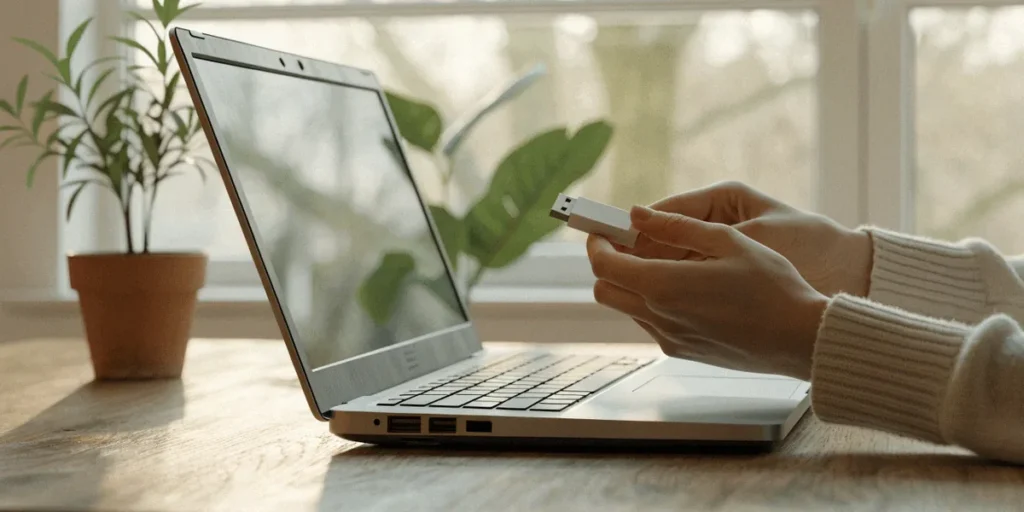
You will need a USB stick with at least 4GB of space. You will also need a tool to write the Linux ISO file to the USB. We recommend Rufus or Etcher. Both are free and easy to use.
- Download the ISO file for your chosen distribution (e.g., Linux Mint XFCE) from the official website.
- Insert your USB stick into a working computer.
- Open Rufus or Etcher and select the ISO file you downloaded.
- Select your USB stick as the target device.
- Click ‘Start’ and wait for the process to complete.
Install and Set Up
Insert the USB stick into your old laptop and restart it. You will need to press a key (often F12, F2, or Esc) during boot to access the boot menu and select the USB drive. Once the Linux desktop loads, you will see an ‘Install’ icon. Click it and follow the prompts. You will be asked if you want to erase the disk or install alongside Windows. If you are feeling cautious, you can choose to dual-boot with Windows, which lets you choose which operating system to use each time you start the laptop. However, if you want to reclaim the space and speed, erasing the disk is the better option.
Essential Open-Source Software for Your Revived Laptop
Once you are up and running, you will need some software. The beauty of Linux is that most of it is free and open-source. These tools are often used in UK schools and businesses because they are reliable and cost-effective.
Office and Productivity
LibreOffice is a free open-source alternative to Microsoft Office. It includes a word processor, spreadsheet, and presentation tool. It can open and save files in Microsoft formats, so you can still share documents with friends and colleagues who use Windows. For note-taking, we recommend Joplin or Simplenote.
Browsing and Media
Firefox is usually pre-installed, and it is excellent. For media, VLC is the gold standard. It plays almost any video or audio file you throw at it. If you need to edit images, GIMP is a powerful alternative to Photoshop. For email, Thunderbird is a solid choice that handles multiple accounts well.
Education and Coding for Kids
If you are reviving this laptop for a child, there are excellent educational tools available. Scratch is great for learning programming logic. For older kids, Python is pre-installed on most Linux distributions. The Raspberry Pi Foundation provides a wealth of free learning resources that work perfectly on a Linux laptop.
Troubleshooting and UK-Specific Tips
Occasionally, things do not go perfectly. You might find your Wi-Fi is not detected, or the sound does not work. Do not panic. These are common issues with easy fixes.
Wi-Fi and Graphics Drivers
Some laptops, particularly those with Broadcom Wi-Fi cards, require proprietary drivers. Linux Mint usually offers to install these for you during the setup process. If you missed that, you can find them in the ‘Driver Manager’ application. For graphics, most Intel and AMD chips work out of the box. Nvidia cards might require a proprietary driver, which you can also select in the Driver Manager.
Getting Help from UK Communities
You are not alone. There are fantastic resources available right here in the UK. Ubuntu UK has a local community team (LoCo) that offers support and organises meet-ups. The Linux Mint forums are also incredibly active and welcoming to newcomers. If you prefer face-to-face help, look for a local repair cafe. These volunteer-run events are common in UK towns and cities, and there is often a Linux enthusiast on hand who can help you troubleshoot. Additionally, local Linux user groups (LUGs) often meet in pubs or community centres to chat and fix problems.
Making the Most of Your Revived Laptop
Now that your laptop is running Linux, what should you do with it? The possibilities are broader than you might think.
Media Centre and Streaming
You can connect the laptop to your TV via HDMI and use it as a media centre. With Kodi or Plex, you can organise your film collection or stream content from BBC iPlayer, ITVX, and Channel 4. It is a great way to give an old machine a permanent job in the living room.
Homework and Home Office
A lightweight Linux laptop is perfect for a child’s homework. It is fast, secure, and less prone to viruses. It is also ideal for a home office if you just need to write documents and browse the web. You can even use it as a dedicated machine for managing household finances or printing labels.
Reducing E-Waste in the UK
By reviving this laptop, you have prevented a piece of electronic equipment from entering the waste stream. This is a small but meaningful contribution to reducing e-waste in the UK. It also saves you the cost of buying a new laptop, which is a nice bonus after the expense of Christmas.
FAQ
Is Linux hard to learn?
Not at all. Modern distributions like Linux Mint and Ubuntu are designed to be user-friendly. If you can use Windows or macOS, you can use Linux. The main difference is the names of the apps, but the concepts are the same.
Will my printer work with Linux?
Most modern printers from HP, Canon, and Epson work perfectly with Linux. You simply plug them in, and the system usually detects them automatically. If not, the ‘Printers’ settings menu can often find the drivers online.
Can I still use Microsoft Office files?
Yes. LibreOffice can open, edit, and save files in Word, Excel, and PowerPoint formats. You can also use the web versions of Microsoft Office in your browser if you have a subscription.
What if I get stuck?
The Linux community is very helpful. Search the Linux Mint forums or the Ubuntu UK website for your specific issue. There is almost certainly someone who has had the same problem and found a solution.
Reviving an old laptop with Linux is a rewarding, eco-friendly project that anyone can do over the Christmas break. It saves money, reduces waste, and gives you a perfectly usable computer for the new year. We encourage you to dig out that dusty machine, download a distribution, and give it a go. You might be surprised at just how capable that old hardware still is.