
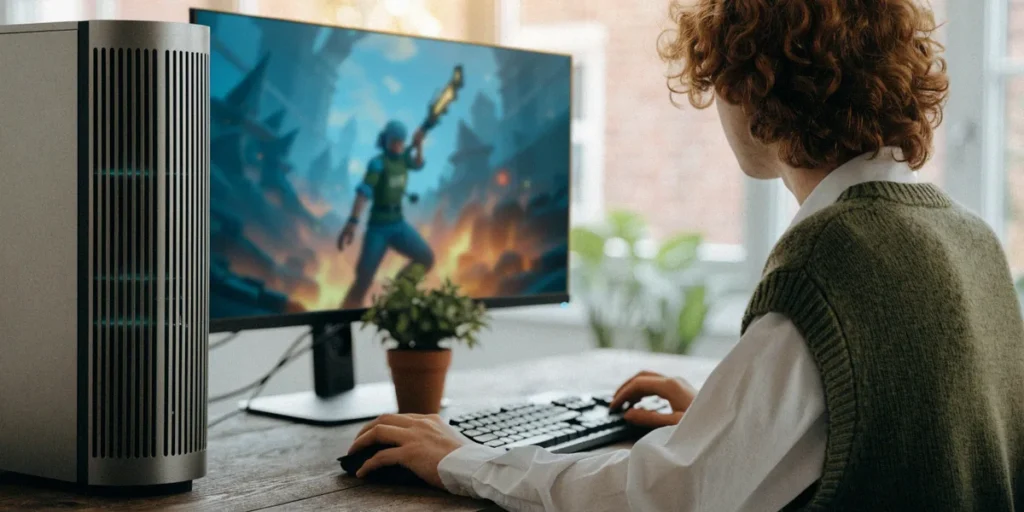
Gaming on Linux: Steam, Proton and What Actually Works
We will be honest with you: Linux gaming has come a long way, but it still has rough edges we need to talk about. A decade ago, running modern games on an open-source operating system was an exercise in frustration. Today, thanks to Valve’s investment in Proton and the Steam Deck, most of your Steam library will simply install and run. But “most” is not “all”, and the gaps tend to catch people out — particularly online multiplayer titles and anything with aggressive anti-cheat. This guide walks through what genuinely works in 2024, what still needs tinkering, and what simply will not run, so you can make a sensible decision before wiping Windows off your gaming PC.
Why Linux Gaming Finally Deserves Your Attention

The turning point was Valve’s decision to build a handheld console around Linux. When the Steam Deck launched, Valve could not rely on game developers porting titles natively, so they invested heavily in Proton — a compatibility layer that translates Windows game code into something Linux understands. The result changed the economics of Linux gaming overnight. Suddenly there was commercial pressure on anti-cheat vendors, GPU manufacturers and game studios to take Linux seriously.
For UK households, the practical upshot is that a £300 mini PC or an older desktop running Ubuntu or Linux Mint can now play thousands of titles that were Windows-only five years ago. If you are weighing up whether to switch, the library is no longer the blocker it once was.
The Steam Deck Effect on UK Buyers
The Steam Deck is officially available in the UK via Steam and Komodo, which means no grey imports or inflated eBay prices. That matters because the Deck has effectively become a reference device: if a game runs well on Steam Deck, it will almost certainly run well on a desktop Linux install with comparable hardware. Valve’s “Verified” and “Playable” badges give UK buyers a quick signal, and the verified library now runs into the thousands.
Proton: Valve’s Compatibility Layer Explained
Proton bundles Wine, DXVK and VKD3D into a single package that Steam manages for you. Wine handles the Windows API calls, DXVK translates Direct3D 9, 10 and 11 into Vulkan, and VKD3D does the same for Direct3D 12. You do not need to understand any of that to use it — you tick a box in Steam settings and Proton does the rest. What you do need to understand is that Proton is not emulation. It is translation, and translation is fast when it works and occasionally broken when it does not.
Steam on Linux: What Works Out of the Box
Steam itself runs natively on Linux, which means the client is not going through Proton. Installation is straightforward on both major UK-friendly distributions, and once Steam Play is enabled, the majority of your library becomes installable with a single click.
Installing Steam on Ubuntu and Linux Mint
On Ubuntu UK, the simplest route is the official .deb package from Valve’s website, or the Snap from the Ubuntu Software Centre — though we generally recommend the .deb because Snap sandboxing occasionally causes controller and library path quirks. On Linux Mint, Steam is available directly in the Software Manager, which pulls the standard Debian package. Both distributions are popular choices for UK Linux gamers precisely because driver and Steam setup is well documented.
After installing, open Steam, go to Settings → Compatibility, and enable “Enable Steam Play for all other titles”. This unlocks Proton for games Valve has not explicitly whitelisted.
Using ProtonDB to Check Game Compatibility
ProtonDB is a community resource for checking Linux game compatibility, and we consider it essential before any purchase. It aggregates user reports and assigns a rating from Platinum (runs perfectly) down to Borked (does not launch). Before you buy anything in a Steam sale, search the title on ProtonDB and read the most recent reports — hardware and Proton versions change quickly, so a report from six months ago may no longer be accurate.
Titles that consistently rate Platinum include:
- Hades
- Stardew Valley
- Counter-Strike 2
- Hollow Knight
- Portal 2
All four run without any manual configuration on a standard Ubuntu or Mint install with current GPU drivers.
Proton Versions and Tweaks: When You Need to Tinker
Occasionally a game will not launch on the default Proton version but will work on another. Steam lets you force a specific Proton build per game under Properties → Compatibility. The two you will actually use are Proton Experimental and GE-Proton.
Proton GE vs Valve Proton: Which to Choose
Valve’s official Proton is stable and well tested. Proton Experimental is the bleeding-edge branch where fixes land first — useful for very new releases. GE-Proton (GloriousEggroll) is a community fork that bundles extra media codecs and patches for games Valve has not prioritised. If a game fails on official Proton, GE-Proton is usually the next thing to try. Install it via ProtonUp-Qt, which is available in most distribution repositories.
Launch options are the other lever. Setting PROTON_USE_WINED3D=1 forces the older WineD3D translation path instead of DXVK, which occasionally fixes graphical glitches on older GPUs — though it usually costs performance, so treat it as a diagnostic tool rather than a permanent setting.
Lutris and Heroic for Epic and GOG Games
Steam is not the only storefront. For Epic Games Store and GOG titles, we recommend Heroic Games Launcher, which handles both with a clean interface and per-game Proton selection. Lutris is the more powerful option, with community-maintained install scripts for older and more awkward titles, including many from the Windows XP era that need specific Wine configurations.
Native Linux Games and Open-Source Alternatives
Proton gets the headlines, but native Linux games remain the smoothest experience — no translation layer, no compatibility caveats, and typically better performance per watt.
Top Native Linux Games Worth Playing
Factorio, Valheim and Dota 2 all ship with proper Linux builds and run beautifully. Factorio in particular is famously well optimised on Linux and is a favourite in our workshops. Dota 2 is Valve’s own title and effectively serves as a reference for what native Linux gaming should feel like.
Open-Source Games for Raspberry Pi in UK Schools
For schools, the open-source software ecosystem offers genuinely useful options. SuperTuxKart is a Mario Kart-style racer that runs on modest hardware, and 0 A.D. is a free real-time strategy game in the Age of Empires tradition. Both are packaged in Raspberry Pi OS and are used in UK schools for coding clubs and end-of-term sessions — they teach computing concepts while being genuinely fun, which matters more than any curriculum document.
Hardware and Performance: What UK Gamers Need to Know
Driver quality is the single biggest factor in Linux gaming performance, and the choice between NVIDIA and AMD still matters in 2024.
NVIDIA vs AMD Drivers on Linux
AMD’s open-source drivers are built into the kernel and Mesa, meaning they update with your system and generally “just work”. NVIDIA requires its proprietary driver, which is stable but occasionally lags behind on new kernel support and Wayland features. For a hassle-free Linux gaming build, we lean AMD. For raw performance at the high end, NVIDIA remains competitive, but budget extra time for driver management.
Mesa updates matter on AMD — newer Mesa versions bring meaningful performance improvements, so running a distribution with reasonably current packages (Ubuntu 24.04, Mint 22) is worthwhile.
Raspberry Pi 5: Casual Gaming Only
The Raspberry Pi 5 can handle lightweight open-source games but not modern AAA titles. Its GPU is fine for SuperTuxKart, 0 A.D. at modest settings, and retro emulation up to around PlayStation 1. Do not expect it to run anything from the last decade of PC gaming. For a family or school machine, that is plenty. For a gaming rig, look elsewhere.
On the handheld side, Steam Deck UK pricing starts at £349 for the 256GB LCD model, rising to £569 for the 1TB OLED. It is a genuinely competitive price against Windows handhelds, and it comes with Linux pre-installed.
Anti-Cheat and Online Multiplayer: The Real Blockers
This is where Linux gaming still fails, and we will not pretend otherwise. Kernel-level anti-cheat systems were designed for Windows and, historically, refused to run under Proton at all.
Which Anti-Cheat Systems Now Support Linux
Easy Anti-Cheat and BattlEye now support some Linux titles, but not all. The support is opt-in — the game developer must enable it. That means Apex Legends works, while Fortnite, Destiny 2 and Call of Duty still do not. There is no technical reason these games cannot work; it is a business decision by the publishers.
Workarounds That Don’t Work (and Why)
We see the same suggestions repeated in forums, and they are almost all dead ends:
- Spoofing the anti-cheat detection — results in a ban, not a working game.
- Running in a virtual machine with GPU passthrough — anti-cheat detects the VM and blocks it.
- Using an older Proton version — the block is server-side, not client-side.
- Dual-booting “just for one game” — workable, but defeats the point of switching.
For UK players, ping is also worth noting: most game servers are hosted in mainland Europe, so UK players typically see 20–40ms regardless of operating system. Linux does not add meaningful latency once a game is running.
FAQ
Can I play Steam games on Linux without any setup?
Mostly yes. Install Steam, enable Steam Play in settings, and the majority of your library will install and run. Check ProtonDB first for anything you are unsure about.
Is Linux Mint or Ubuntu better for gaming?
Both are excellent. Ubuntu UK has slightly newer packages and broader hardware support out of the box; Linux Mint is more familiar to Windows switchers. Performance is effectively identical on the same hardware.
Will Fortnite ever work on Linux?
Not while Epic refuses to enable Easy Anti-Cheat for Linux. The technology supports it; the publisher has chosen not to.
Can I use a Raspberry Pi 5 as a gaming PC?
For open-source and retro games, yes. For modern titles, no — the GPU is simply not powerful enough, and Proton does not run on ARM.
Do I need a separate GPU driver for gaming on Linux?
AMD users generally do not — the open-source driver is built in. NVIDIA users should install the proprietary driver from their distribution’s repository.
Linux gaming is viable for most UK homes and schools if you check compatibility first. Our advice is simple: before your next install, look up your three most-played games on ProtonDB. If they rate Gold or better, take the plunge. Start with Steam and Proton on Ubuntu or Linux Mint, keep a Windows dual-boot only if you genuinely need one blocked multiplayer title, and enjoy an operating system that respects your hardware and your privacy.